ALICE Mobile App Home Page
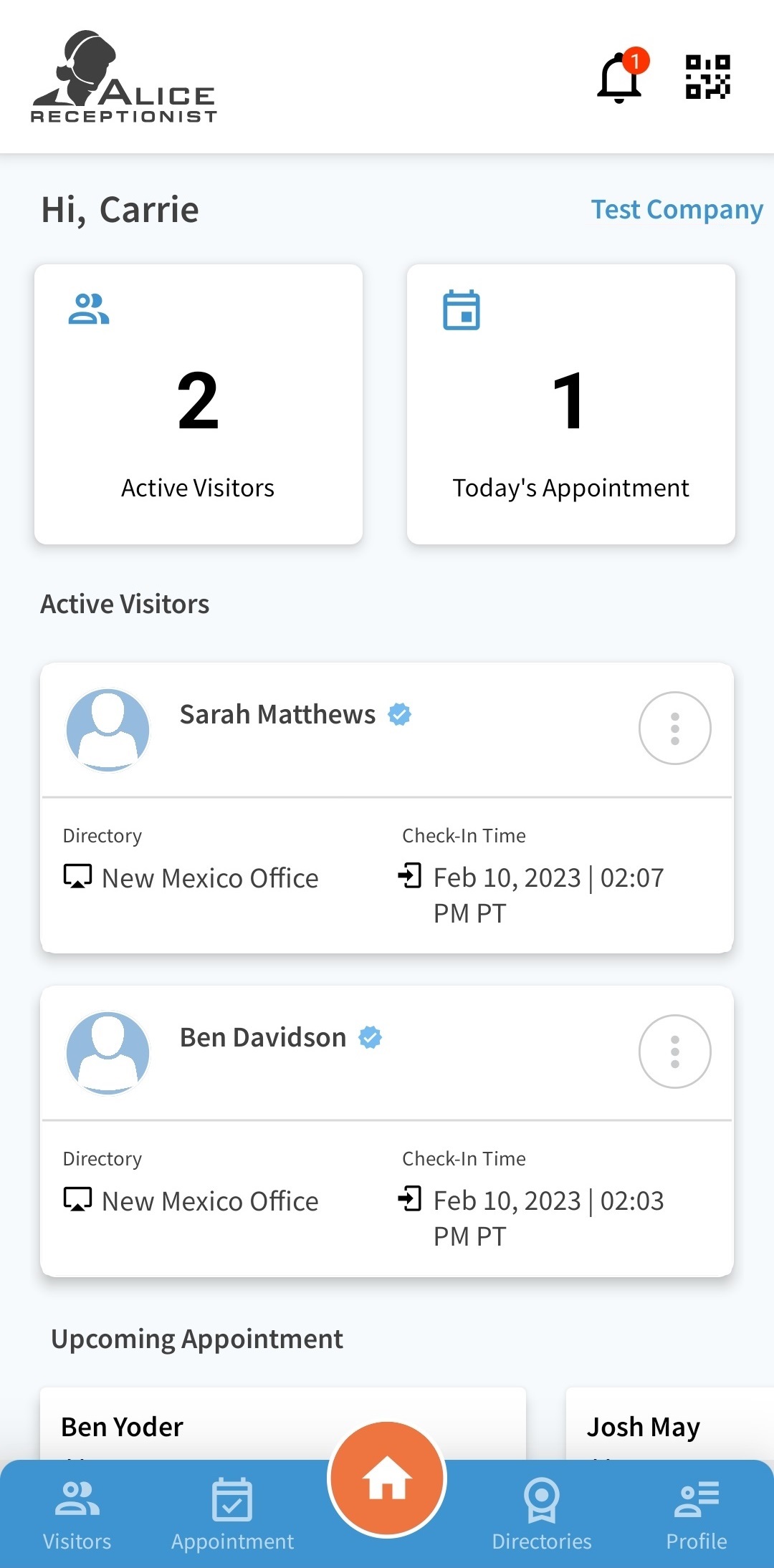
The ALICE Mobile App Home page is the first screen that appears after logging in. It provides quick access to notifications, Active Visitor details, upcoming appointment details, and your Employee ID code.
Visitor and Upcoming Appointment Count Windows
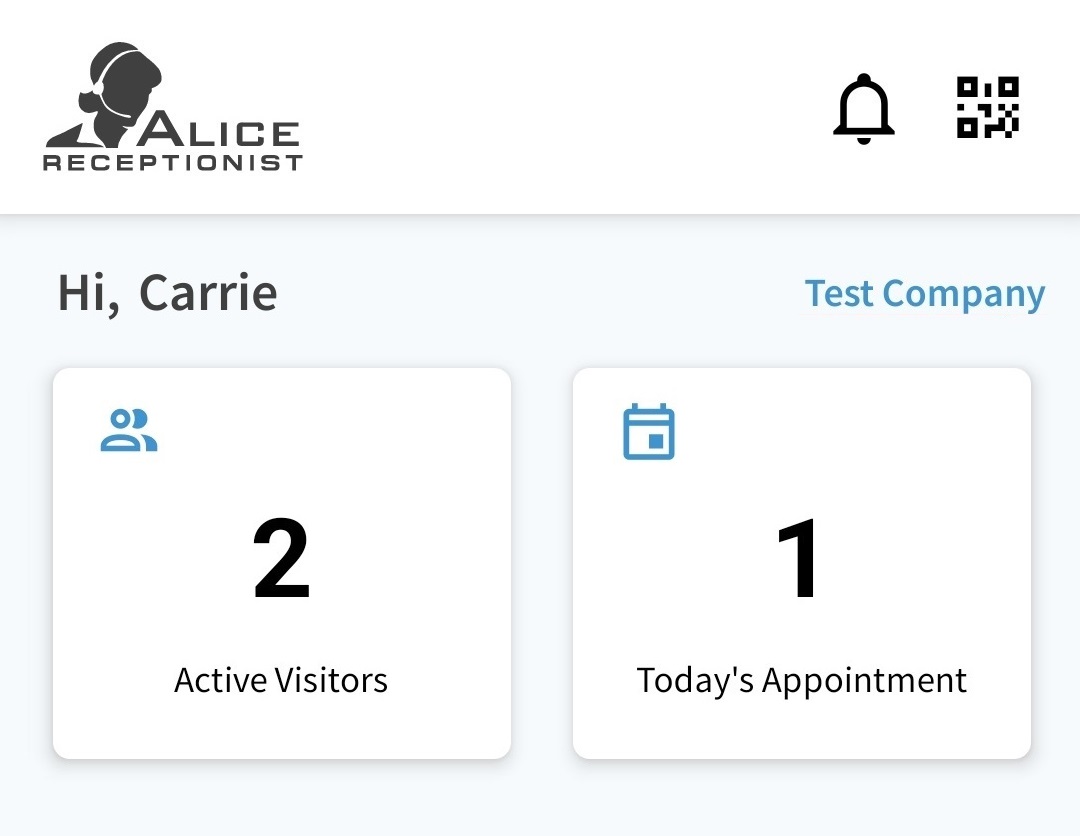
At the top of the Home page, there are two windows. The left displays the current number of Active Visitors checked in with you. The right window displays the number of upcoming appointments for the day.
Tapping the Active Visitor window will navigate to the Visitor page. Tapping the upcoming appointments window will navigate to the Appointment page.
Notifications
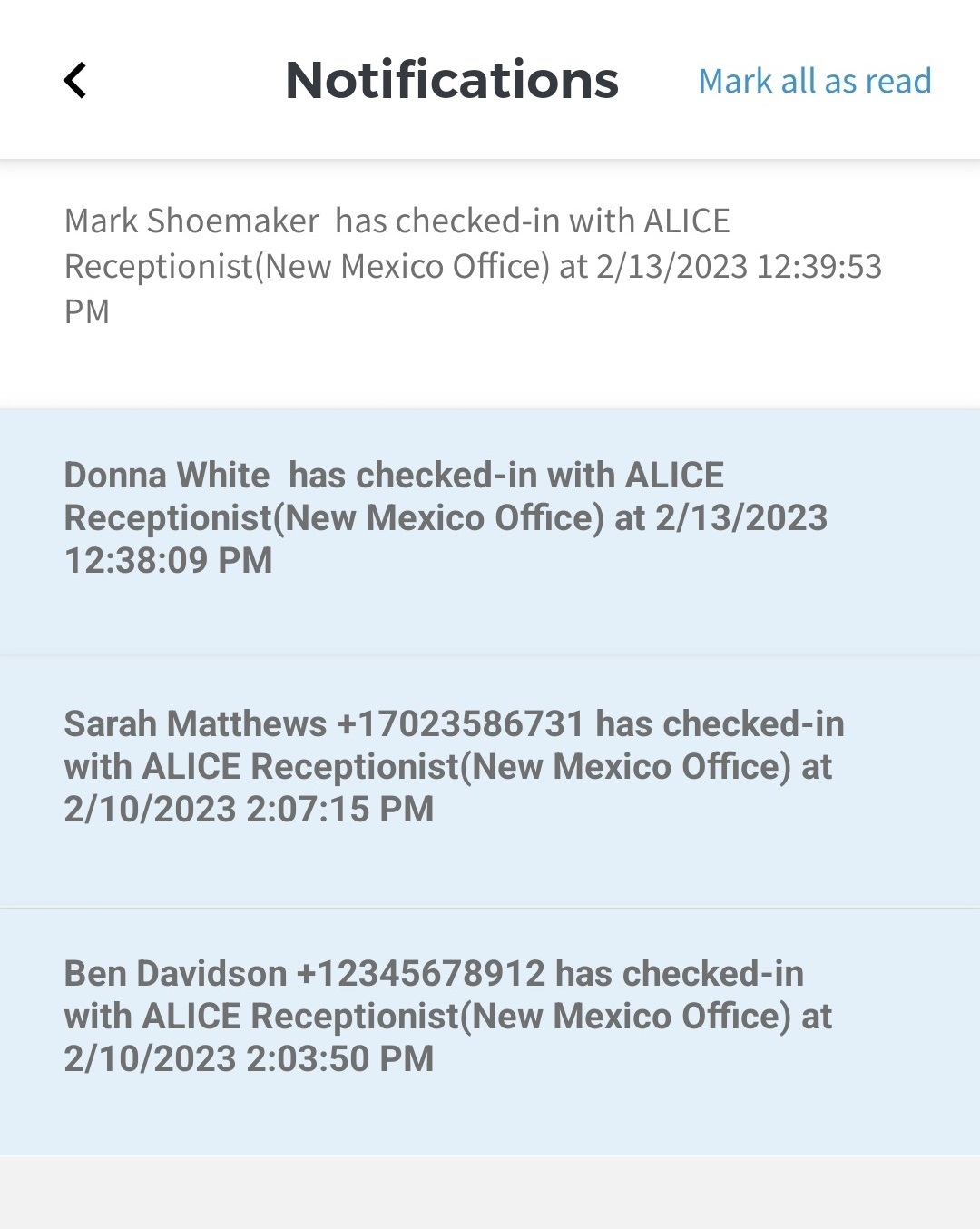
Selecting the Notification Bell in the top right corner of the screen will display all notifications received. Selecting a notification will open the Visitor Detail view. More details about this view can be found on the Visitor page section.
Once a notification has been tapped and viewed, it will be marked as read. To mark all notifications as read, tap the Mark all as read option at the top right corner of the page.
Employee ID Code
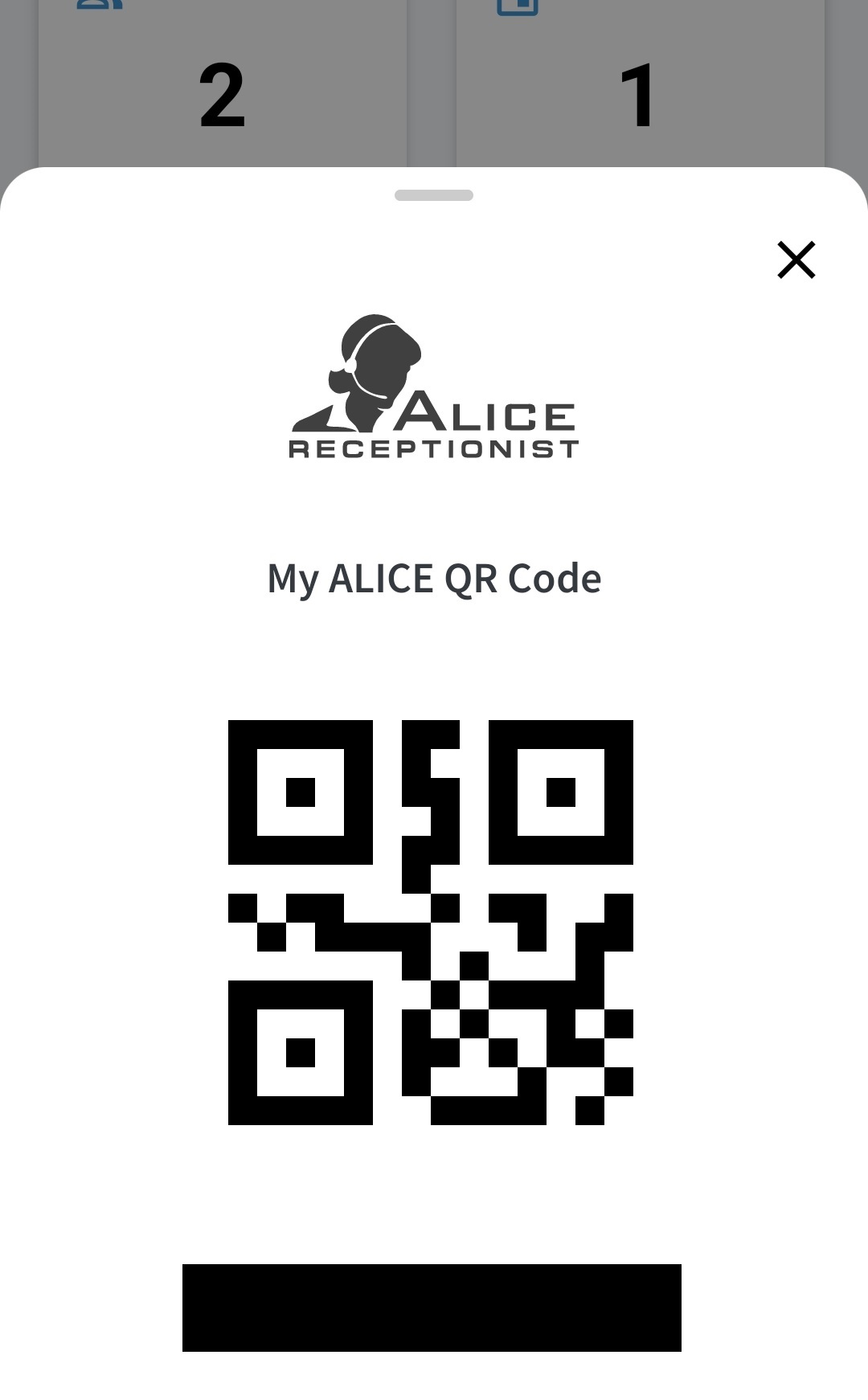
Selecting the  icon will display your Employee ID QR Code as well as Employee ID code. If your organization requires employees to check-in, this code can be used on the ALICE Kiosk using the Fast Track Check-in feature. More details can be found in the Visitor Fast Track Check-in Process.